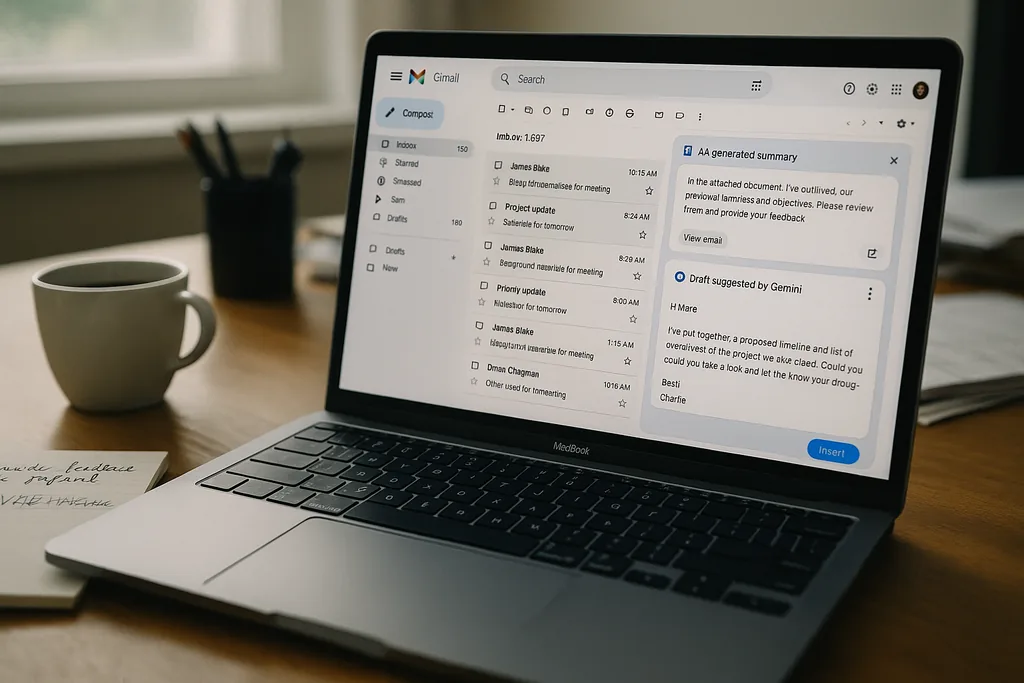
When Gmail’s inbox learned to summarize
This week Google pushed a fresh wave of Gemini-powered features into Gmail — an "AI Inbox" that surfaces priorities and a "Catch me up" recap, thread summaries and search overviews that answer natural-language queries, and new drafting tools such as Help Me Write and a one‑click Proofread. Some features are rolling out broadly and others are gated behind paid tiers and trusted‑tester channels, but the change is immediate: your inbox can now try to do the sifting and drafting for you.
What arrives on your screen — and which features cost money
The new set of capabilities groups into three obvious buckets.
- Everyday helpers (free or broadly available). Smarter suggested replies, AI summaries of long threads and Help Me Write-style drafting prompts so you can generate a complete reply from a short instruction.
- Search and summarization powers (paid first). Natural‑language “AI Overviews” that can comb many conversations, receipts and orders and return a short summary are being positioned as premium features for Google One Pro and Ultra subscribers at launch.
- Polish and productivity for paid users. Proofread (grammar, concision, tone) and deeper Inbox sorting are being bundled into paid tiers first; broader availability will follow over time.
The AI Inbox itself is arranged into two panes: Priorities, which pushes time‑sensitive items and action points to the top, and Catch me up, which groups reservations, deliveries and non‑urgent summaries so you can scan instead of reading every message.
How to make Gemini work for you
If you want to try the features and keep control of the outcome, treat Gmail’s AI like an assistant that needs direction.
- Start small and check results. Use thread summaries and Help Me Write for low‑risk drafts (weekend plans, logistics, simple scheduling) to get a feel for how Gemini frames tone and facts. AI will speed up routine writing but still makes mistakes on facts and nuance.
- Use structured prompts. Tell the AI the audience, length, required facts and a sample sentence or two of your tone. The more context you give, the fewer edits you’ll need.
- Proofread, but also edit for context. Proofread can fix grammar and tighten phrasing; you still need to verify dates, attachments and financial amounts before you hit send.
- Try AI Overviews for searches. When you can’t find a receipt or that one mention in months of messages, a natural‑language overview can be a time saver — especially if you’re juggling travel or receipts. Expect the best results when you follow up the summary with a focused question ("show me orders from September to December, filtered by vendor X").
- Use paid tiers selectively. If you rely on Gmail at work and need reliable summarization and higher usage limits, the paid Google One options accelerate access to the deepest tools, but remember you’re paying partly for convenience and for higher usage caps.
How to turn the features off — and what you give up
Not everyone wants AI in their mail, and Google provides toggles — but they come at a cost. Turning off the AI features is done in Gmail settings under See all settings (General), where you can disable the smart features. You should also check any Workspace smart feature controls that link Gmail to Calendar and other Google apps and toggle those off for thoroughness.
The trade‑offs are real. Disabling "smart features" can:
- remove Inbox categories (Social, Promotions, Updates), leaving one long chronological list;
- stop Calendar from pulling meeting invitations and event details out of mail automatically;
- turn off features such as suggested replies and some automation conveniences.
In short, opting out is effective, but you lose a layer of convenience — and for some power users, a set of features that integrate across Google services.
What the rollout means for privacy and corporate life
The technical shorthand for these features is simple: they rely on models that ingest mail and metadata to surface summaries and draft text. That raises two separate questions.
Personal data and risk: auto‑summaries and drafting rely on extracting details. For people who share an account, handle sensitive client data, or work in regulated contexts, the automatic extraction of dates, order numbers and medical or financial terms raises a profile risk. Turning off smart features is the blunt privacy lever; organizations that need stronger governance should look to Workspace admin controls and data‑processing agreements.
Workplace dynamics: The broader industry context is important. VC research shows AI is now part of many people’s daily routines, and large language models are becoming defaults embedded into core apps. At the same time, reporting from workers in tech shows AI adoption is changing work practices, sometimes quickly and sometimes painfully. Several recent accounts describe how firms reassign labor, introduce new productivity metrics, or favor AI‑driven workflows — decisions that can lead to reorganizations and layoffs even when the models themselves are only tools.
That tension matters for Gmail users who are also workers: enabling AI at work may speed certain tasks, but it can also become part of a wider productivity story inside a company that reshapes roles and expectations. If you’re a manager, document decisions about AI use, clarify expectations for quality control, and resist turning assistants into automated performance metrics.
Practical checklist: safe rollout and sensible use
- Decide your tolerance: try features for low‑risk mail first, and keep a list of errors the AI made; this helps you judge reliability.
- Control scope: limit the AI to drafting and summarizing, not to any automatic sending or external integrations without human approval.
- Audit regularly: once a month, sample AI Overviews and Help Me Write outputs for accuracy and tone drift.
- Privacy first: if mail contains regulated data, disable smart features and use workspace admin controls to enforce that policy.
- Keep learning: AI tools change fast. Maintain a small internal playbook explaining what AI should and should not be used for in your workflows.
Why this matters beyond your inbox
Gmail’s Gemini rollout is a reminder of a pattern we've seen across the technology landscape: models get better and integrated fast, adoption diffuses into daily life, and companies use convenience to drive usage. That creates enormous productivity upside — and also real workplace and societal questions about skill erosion, job redesign and privacy.
If you lean into the new tools, do so as a curator: use AI to accelerate routine work, but keep the judgment, verification and sensitive decisions squarely human. If you opt out, do so with eyes open: you’ll trade convenience for control. Either way, the inbox is now the front line where model capability, product design and workplace policy meet — and the choices you make there will ripple beyond your sent mail.
Sources
- Google (product announcements and Gmail help documentation)
- OpenAI (GPT‑5 model release and product notes)
- Menlo Ventures (2025: The State of Consumer AI report)




Comments
No comments yet. Be the first!